
 By adnanshabbir942@gmail.com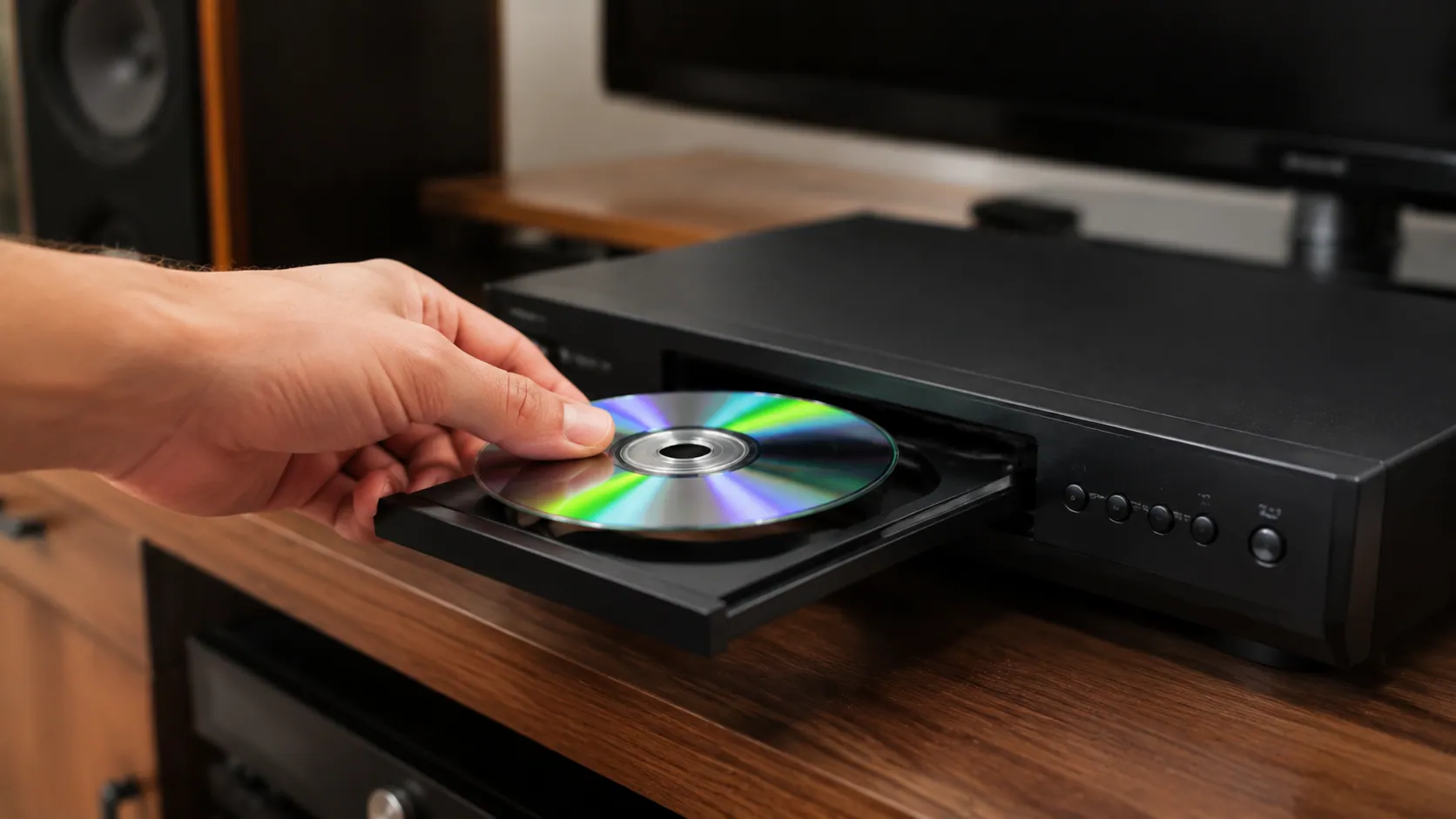
Introduction: Can a DVD Player Play CDs?
Yes, in most cases, a DVD player can play standard audio CDs without any problem. If you have a regular music CD from an album, an old collection, or a store-bought disc, there is a good chance your DVD player will read it and play the tracks just like a basic CD player.
This works because DVD players are generally built to be backward compatible with CDs. DVDs came after CDs, so many DVD players were designed to read both disc types. That means you can usually play CDs on a DVD player through your TV speakers, soundbar, stereo system, or home theater setup.
However, DVD player CD compatibility is not always the same for every disc or every machine. A standard audio CD in a DVD player is usually the safest option, but burned CDs, CD-RW discs, MP3 CDs, and data CDs may depend on the player’s model, age, condition, and supported file types. Older DVD players may also struggle with scratched discs, poorly burned CDs, or newer file formats.
In this guide, we’ll explain which CDs usually work, why DVD players can play music CDs, what types of discs may not play, whether the sound quality is good, how to set everything up, and what to do if your DVD player does not read a CD properly.
Can a DVD Player Play CDs?
Yes, most DVD players can play standard audio CDs. If you place a regular music CD in a DVD player, the player will usually read the disc and begin audio CD playback just like a normal CD player. This is why many people use an old DVD player as a simple way to listen to music CDs at home.
A DVD player works by using optical reading technology to scan discs. Since DVDs and CDs are both optical discs, many DVD players are designed to read more than one format. This is part of basic DVD and CD compatibility, especially with standard store-bought music CDs that follow normal audio CD standards.
In most cases, a store-bought music CD in a DVD player will not need any special setup. You simply insert the disc, wait for the player to recognize it, and press play if it does not start automatically. The sound will come through whatever system your DVD player is connected to, such as TV speakers, a stereo receiver, a soundbar, or a home theater system.
However, there is one important difference to understand: a DVD player plays CDs in many cases, but a regular CD player cannot play DVDs. A DVD player is usually built to handle older CD formats, but a CD player does not have the technology needed to read DVD discs. So, while DVD players are often flexible, CD players are more limited to audio CDs only.
Why DVD Players Can Usually Read CDs
DVD players can usually read CDs because DVDs came after CDs, and many DVD players were built with backward compatibility. In simple terms, a backward compatible DVD player is designed to work with older disc formats, not just DVDs. That is why many DVD players can handle regular music CDs without needing a separate CD player.
A DVD player is mainly designed for DVD discs, but most models also support the older Compact Disc standard. This standard is what allows a properly made audio CD to be recognized and played. Official manufacturer guidance, including Sony support information, also explains that DVD players are generally designed to play discs that meet the Compact Disc standard.
CDs and DVDs may look almost the same from the outside, but they do not store information in exactly the same way. A CD stores audio data in a simpler CD format, while a DVD can hold more data because it stores information more tightly. The DVD player laser and reading system are built to handle DVD data, but most players also include support for reading standard CDs.
This is why CD vs DVD playback can feel similar to the user. You insert a disc, the player reads it, and the sound comes through your connected speakers or TV. The difference is happening inside the machine, where the player identifies the disc type and uses the correct reading method. For most people, that means a regular audio CD should play smoothly in a compatible DVD player.
What Types of CDs Can a DVD Player Play?
Not every CD is exactly the same, so DVD player CD compatibility can depend on the disc type. A regular store-bought music CD is usually easy for a DVD player to read, while burned CDs, rewritable CDs, and music file discs may depend on the player’s supported formats.
Standard Audio CDs
A standard audio CD is the regular type of music CD you might buy from a store, receive with an album, or own from an official music release. These discs use the normal CD audio format, which most DVD players are built to recognize.
This type of music CD is the most likely to work in a DVD player. In many cases, you can insert the disc, close the tray, and the player will begin reading it automatically. Some DVD players may show a simple track list on the TV screen, while others may just display the track number on the front panel.
If you want the safest test, try a clean, original regular CD first. If that plays correctly, your DVD player can probably handle standard audio CD playback.
CD-R Discs
Many DVD players can also play a CD-R in a DVD player, especially if the disc was burned correctly. A CD-R is a recordable disc that can be written once, often used for making a homemade music CD from audio files.
However, compatibility depends on both the DVD player and the way the disc was created. A burned CD may not play if it was not finalized after burning, if the files were saved in an unsupported format, or if the disc quality is poor. A finalized CD-R usually has a better chance of working because the player can read it as a complete disc.
A practical tip is to burn CDs at a slower speed when possible. Slower burning can sometimes make the disc easier for older DVD players to read, especially if the player is sensitive or aging.
CD-RW Discs
A CD-RW in a DVD player may work, but it is often less reliable than a CD-R. CD-RW stands for rewritable CD, which means the disc can be erased and used again. That convenience can come with a tradeoff: some DVD players, especially older models, may have trouble reading the surface of a rewritable CD.
If you have a burned CD not playing in your DVD player and it happens to be a CD-RW, try the same music on a regular CD-R instead. CD-R discs are often more compatible with older DVD players and basic home entertainment systems.
This does not mean CD-RW discs never work. Many newer DVD players can read them, but disc compatibility varies by model. The best way to know is to check the manual or look for CD-RW support printed on the player, box, or product information page.
MP3 CDs and Data CDs
Some DVD players can play an MP3 CD in a DVD player, but not all of them can. An MP3 CD is different from a standard audio CD because it usually stores compressed music files instead of traditional CD audio tracks. This allows more songs to fit on one disc, but the DVD player must support MP3 playback.
A data CD full of music files is also different from a regular audio CD. For example, a disc with MP3 or WMA files may open as folders and filenames on the TV screen instead of playing like a normal album. If the player does not support those file types, it may show an error, skip the files, or fail to read the disc.
To check DVD player MP3 support, look at the manual, the front of the player, or the supported format list. Common labels to look for include MP3, WMA, JPEG, CD-R, CD-RW, and data disc support. If your player lists MP3 or WMA, it may be able to play music files on CD. If it only lists audio CD support, a standard music CD is the safer choice.
What CDs May Not Play in a DVD Player?
Although most DVD players can play regular audio CDs, some discs may still fail. If you have a CD not playing in a DVD player, it does not always mean the player is broken. The problem may be the disc condition, the disc format, or the way the CD was made.
A scratched CD, dirty CD, cracked CD, warped disc, or poorly burned CD may not read correctly. Even small marks can sometimes cause skipping, freezing, or a bad disc error, especially if the DVD player is older or the laser lens is weak. Before assuming the disc is unsupported, clean it gently with a soft microfiber cloth and test another standard music CD.
Some discs may also be an unsupported CD because they do not follow the normal Compact Disc standard. Sony notes that certain copyright protected CD releases and DualDisc formats may not play as expected because they may not fully conform to the standard CD format. This is why one music CD may work perfectly while another disc from a different release may not read at all.
It is also helpful to know that region coding usually applies to DVDs, not standard audio CDs. So, if a regular music CD will not play, the issue is usually not a region problem. It is more likely related to disc damage, format support, copy protection, burning quality, or the DVD player’s age.
Very old or low-cost DVD players may also have limited support for burned CDs, CD-RW discs, MP3 CDs, WMA files, or data discs. If your player handles store-bought audio CDs but rejects homemade or compressed music discs, check the manual for supported formats before trying more discs.
How to Play a CD on a DVD Player Step by Step
Learning how to play CD on DVD player is simple once the player is connected correctly. In most cases, a standard audio CD will work without special settings, but the sound will only come through the device your DVD player is connected to.
First, turn on the DVD player and the TV, stereo receiver, soundbar, or home theater system connected to it. If your DVD player uses HDMI, RCA cables, optical audio, or coaxial audio, make sure those cables are firmly plugged in.
Next, open the DVD tray and place the audio CD in the tray with the label side facing up. Close the tray and wait a few seconds while the player reads the disc. Some players begin playback automatically, while others may show a track menu on the TV screen.
If the music does not start by itself, use the remote control and press Play. You may also need to select the correct input on your TV, receiver, or soundbar. For example, your TV may need to be set to HDMI 1, HDMI 2, AV, or another input depending on where the DVD player is connected.
Once the CD starts playing, adjust the volume through your TV, amplifier, speaker system, or soundbar. You can then use the remote to skip tracks, pause, stop, rewind, or move through the CD just like you would with a regular CD player.
For the best DVD player audio setup, think about how you want to listen. If you only want music and do not want the TV on, connect the DVD player directly to a stereo receiver or powered speakers using the audio outputs your player supports. This can make it easier to play music CD on DVD player without relying on the TV every time.
Basic CD playback instructions are simple: connect the player, insert the disc, choose the right input, press play, and control the tracks with the remote. If nothing happens, try another standard CD first before changing settings, because the issue may be the disc rather than the DVD player.
Do You Need a TV to Play CDs on a DVD Player?
You do not always need a TV to play a CD on a DVD player, but having one can make the process easier. A TV helps you see menus, track numbers, playback settings, and any error messages that may appear. If your DVD player shows CD tracks on TV, you can quickly choose a song, skip around the disc, or check whether the player has recognized the CD correctly.
However, you may be able to play CD on DVD player without TV if the player is connected directly to speakers, a stereo receiver, a soundbar, or another audio system. In that setup, the DVD player sends sound through its audio output, and the connected device handles the volume and speakers.
Some DVD players also have front-panel buttons such as Play, Stop, Pause, Skip, Open, and Close. If your player has those controls, you may not need to turn on the TV for a regular audio CD. You can insert the disc, press play, and listen through your connected speakers.
The type of disc also matters. For a standard audio CD, a screen is often optional. But for MP3 CDs, WMA discs, or data CDs with folders, a TV is more useful because the files may appear in an on-screen menu. Without a screen, it can be harder to choose albums, folders, or specific tracks.
The simplest setup is a DVD player connected to speakers or a receiver using the correct DVD player audio output, such as RCA, optical, coaxial, or HDMI audio through a TV or sound system. If you mainly want to listen to regular CDs, you can often use the DVD player without a TV once everything is connected and working.
Will CDs Sound Good on a DVD Player?
For casual listening, CDs can sound perfectly acceptable on a DVD player. If you are playing music through decent TV speakers, a soundbar, a stereo receiver, or a home theater system, a DVD player can work well as a simple CD playback device. Many people use a DVD player as CD player because it is already connected and easy to use.
That said, DVD player CD sound quality depends on more than the player itself. The final sound you hear is affected by your speakers, amplifier, DAC, cables, audio settings, and room setup. A basic DVD player connected to weak TV speakers may not sound as rich as the same player connected to a good stereo system. In many home setups, the speakers and amplifier make a bigger difference than the disc tray.
When comparing CD player vs DVD player audio, dedicated CD players may have some advantages. A good dedicated CD player may include better audio components, smoother disc loading, quieter operation, and higher-quality analog outputs. This can matter for people who listen carefully, use high-end speakers, or want the best possible audio quality from a CD collection.
Audio specialists often point out that CDs can usually play in DVD players and Blu-ray players, but dedicated CD hardware may offer better playback for serious music listening. For most everyday users, though, a working DVD player is a practical and budget-friendly option. If your CDs play clearly, do not skip, and sound good through your speakers, there is nothing wrong with using a DVD player for music.
DVD Player vs CD Player: Which Is Better for Music?
When comparing DVD player vs CD player for music, the better choice depends on how you plan to listen. A DVD player is more flexible because it can play both movies and music. If you already have one connected to your TV, soundbar, or home theater system, it can be a useful CD player alternative without buying another device.
A dedicated CD player may be better if your main goal is simple music listening. CD players are usually made for audio first, so they may load discs faster, have easier track controls, and work smoothly without needing a TV screen. Some models also have dedicated audio components that are designed specifically for home audio CD playback.
A DVD player for music can still work well, especially for casual listening. The main drawback is convenience. Some DVD players are easier to control with the TV turned on, especially if you want to see track numbers, menus, or settings. If you only want to press play and listen, a CD player may feel more direct.
For older users, small stereo setups, or people with large CD collections, a dedicated CD player can be more comfortable and practical. The buttons are usually simpler, the display is easier to follow, and the device is built around music rather than video.
For budget use, though, an existing DVD player is usually enough. If your DVD player reads CDs properly and sounds good through your speakers, you do not need to replace it right away. The best player for CDs is the one that fits your setup, listening habits, and sound expectations.
Can Blu-ray Players Play CDs Too?
Yes, many Blu-ray players can play CDs too. In fact, a typical Blu-ray DVD CD player can often handle several disc types, including Blu-ray discs, DVDs, and standard audio CDs. This makes a Blu-ray player one of the most flexible options for people who still use physical media.
Like DVD players, many Blu-ray players are generally built with backward compatibility. That means they are designed to read newer Blu-ray discs while also supporting older formats such as DVDs and CDs. So, if you are wondering, can Blu-ray players play CDs, the answer is usually yes for standard music CDs.
However, Blu-ray player CD compatibility still depends on the exact model. Some players may support standard audio CDs but not every burned disc, CD-RW, MP3 CD, or data CD. That is why it is always smart to check the manual or supported disc list before assuming every format will work.
It is also worth noting that some newer, compact, or unusual models may remove certain legacy features. A player might focus mainly on Blu-ray and streaming features, while offering limited support for older disc formats. If you want to play CDs on Blu-ray player regularly, confirm that the model clearly lists audio CD, CD-R, CD-RW, MP3, or WMA support.
For many home users, owning a Blu-ray player means they may not need a separate DVD player or CD player. If your Blu-ray player reads CDs smoothly and is connected to good speakers, a receiver, or a soundbar, it can be a convenient all-in-one device for movies and music.
Why Your DVD Player Will Not Play a CD
If your DVD player is not reading CD discs, the problem can come from the disc, the player, the connection, or the format. A DVD player may handle regular audio CDs well but still reject certain burned discs, damaged discs, or unsupported formats.
One of the most common reasons is disc condition. A CD that is scratched, dirty, cracked, warped, or heavily smudged may not spin or read correctly. In that case, the DVD player may skip tracks, freeze, show a bad disc error, or display a message such as “no disc.” Before assuming the player is broken, gently clean the CD with a soft microfiber cloth and try another standard music CD.
The disc may also be inserted the wrong way. Most CDs should be placed in the tray with the label side facing up and the shiny side facing down. If the disc is upside down, the player will not be able to read it.
Another common reason for a CD not working in DVD player is that the disc was burned incorrectly. A homemade CD may fail if it was not finalized, burned at a high speed, made with poor-quality media, or saved in a format the player does not support. Older DVD players can be especially sensitive to CD-RW discs, MP3 data discs, and compressed file formats.
Sometimes the issue is inside the player. The laser lens may be dirty, weak, or aging, especially if the DVD player has been used for many years. A dirty or failing laser can cause the DVD player says no disc message even when the disc is inserted correctly.
The DVD player may also need a simple reset. Turning it off, unplugging it for a short time, and then plugging it back in can sometimes clear temporary reading problems. Also check that your TV, receiver, soundbar, or home theater system is set to the correct input. In some cases, the CD is playing, but you cannot hear it because the audio system is on the wrong source.
Finally, the disc itself may be an unsupported disc format. Some discs, such as DVD-Audio, SACD, MP3 data discs, DualDiscs, or non-standard music releases, may not play in a basic DVD player. If regular store-bought audio CDs work but one special disc does not, the issue is probably format compatibility rather than the player itself.
Quick Fixes When a CD Will Not Play in a DVD Player
If you need to fix CD not playing problems, start with the simplest checks before assuming the DVD player is damaged. Many CD playback issues come from dust, scratches, unsupported formats, or small setup mistakes.
First, clean CD surfaces gently with a soft microfiber cloth. Wipe from the center of the disc outward in straight lines, not in circles. This helps remove fingerprints, dust, and light smudges that can stop the player from reading the disc properly.
Next, try another standard music CD. If a regular store-bought CD plays but the problem disc does not, the issue is probably with that specific disc. If no CDs work at all, the DVD player may have a lens, hardware, or settings problem.
Check the DVD player’s manual or supported format list to see whether it can play CD, CD-R, CD-RW, MP3, or WMA discs. Some players handle standard audio CDs but do not support every burned or compressed music format.
If the problem is with a homemade disc, make sure you finalize burned CD projects after recording them. An unfinalized disc may work on the computer that created it but fail in a DVD player. Also, if you used a CD-RW and it does not play, try burning the music again on a regular CD-R.
You should also check the connection. Try a different input, cable, or audio setting on your TV, receiver, soundbar, or speaker system. Sometimes the DVD player is reading the CD, but the sound is not coming through because the audio system is set to the wrong source.
Restarting the DVD player can also help with basic DVD player troubleshooting. Turn it off, unplug it for a short time, plug it back in, and try the CD again. This can clear temporary errors or reading problems.
If the same CD playback problem continues, test the CD in another player, such as a car CD player, computer drive, Blu-ray player, or dedicated CD player. This helps you confirm whether the issue is the disc or the DVD player.
One practical tip: if one homemade CD fails but store-bought CDs work, the issue is usually the burned format, disc quality, or finalization, not the DVD player itself. Avoid forcing the tray, spinning damaged discs, or using cracked CDs, because they can get stuck or cause more serious problems.
How to Check If Your DVD Player Supports CDs
The easiest way to check DVD player supported formats is to look at the front of the player, the disc tray, or the area near the display. Many players show small format logos or labels such as Audio CD, CD-R, CD-RW, MP3, WMA, DVD, or JPEG. These labels can quickly tell you what types of discs the player was designed to read.
You can also check DVD player manual information if you still have the booklet that came with the unit. The manual usually has a section called “Playable Discs,” “Supported Discs,” “Compatible Formats,” or something similar. This section is more reliable than guessing because it gives details for that exact model.
If you do not have the manual, find the DVD player model number. It is usually printed on the front, back, bottom, or rear label of the player. Search that model number online with terms like “supported discs,” “playable formats,” “CD compatibility,” or “manual.” Manufacturer support pages are usually the best source because they provide model-specific information.
When checking the format list, look for terms such as Audio CD, CD-R, CD-RW, MP3, and WMA. If the player lists Audio CD, it should play regular music CDs. If it also lists CD-R or CD-RW, it may play burned or rewritable CDs. If it lists MP3 or WMA, it may play music files saved on a data CD.
A simple real-world test is to insert a clean, standard audio CD. If the DVD player reads it and starts playback, you likely have a CD compatible DVD player for regular music discs. If that works but a burned CD does not, the issue may be the burned format, file type, or disc quality rather than basic CD support.
Model-specific information is always better than general advice. Most DVD players can play CDs, but exact compatibility depends on the brand, model, age, and supported disc formats.
Best Setup for Playing CDs Through a DVD Player
The best setup for playing CDs through a DVD player depends on how you want to hear the music. For basic use, you can connect the DVD player to a TV with HDMI or older AV cables. In this setup, the CD audio will usually play through the TV speakers, which is simple and convenient for casual listening.
For better sound, you can connect DVD player to speakers, a stereo receiver, a soundbar, or powered speakers. This type of home stereo setup can give you clearer, fuller audio than most built-in TV speakers. If you already have a receiver or soundbar, using your DVD player for CDs can be an easy way to enjoy your music collection without buying a separate CD player.
If your player and audio system support it, use a digital DVD player audio connection such as optical or coaxial audio. An optical audio DVD player connection can send clean digital sound to a receiver or soundbar, which may then handle the audio processing. This is a good option if your TV speakers sound weak or flat.
For older stereo equipment, use the red and white RCA audio output ports. These analog outputs are common on many DVD players and can connect directly to older receivers, amplifiers, or powered speakers. Just match the red plug to the red port and the white plug to the white port.
After connecting everything, check the DVD player’s audio menu if sound does not come through properly. Some players let you choose between stereo, digital output, PCM, bitstream, or surround settings. For regular CD playback, a simple stereo or PCM setting is often the safest choice.
Finally, keep the DVD player on a flat, stable surface. CDs can skip or stop if the player is bumped, tilted, or placed near heavy vibration. A clean disc, steady player, and proper audio connection can make a big difference in how smooth and reliable CD playback feels.
Is It Safe to Use a DVD Player as a CD Player Long Term?
Yes, it is generally safe to use DVD player as CD player for regular music listening. A standard audio CD should not damage a properly working DVD player, especially if the player is designed to support CD playback. Most DVD players are built to read more than one disc format, so playing CDs is usually normal use, not misuse.
If you are wondering, is it safe to play CDs in DVD player regularly, the answer is usually yes as long as the discs are clean, undamaged, and compatible with the player. A DVD player can spin and read CDs without harm when everything is working correctly.
The main safety concern is not the CD format itself, but the condition of the disc and the player. Avoid using cracked, warped, badly scratched, or sticky discs. Damaged discs may not spin correctly, can get stuck in the tray, or may cause repeated reading problems. If a disc looks unsafe, it is better not to test it.
For better CD playback safety, keep the tray clean and do not force it open or closed. Also avoid moving, shaking, or tilting the DVD player while a CD is playing. Sudden movement can cause skipping and may stress the disc mechanism.
For normal DVD player long term use, pay attention to warning signs. If the player starts making grinding noises, struggles to open the tray, repeatedly says “no disc,” or fails to read several clean CDs, stop using it and inspect the unit. The issue may be a dirty lens, aging motor, worn tray mechanism, or internal fault.
In most homes, using a DVD player for CDs is a safe and practical choice. As long as you use clean discs, keep the player stable, and avoid forcing damaged media into the tray, a DVD player can serve as a reliable CD player for a long time.
Common Myths About Playing CDs in DVD Players
There are several DVD player CD myths that can make this topic more confusing than it needs to be. In most cases, playing a regular CD in a compatible DVD player is simple and safe, but not every disc or player works the same way.
One common myth is that playing CDs will damage a DVD player. The reality is that standard audio CDs are normally safe in compatible players. If your DVD player supports CD playback, using it for regular music CDs should not harm the machine. Problems are more likely to come from damaged discs, a dirty lens, or an aging player than from the CD itself.
Another common misunderstanding is that every DVD player plays every kind of CD. This is not always true. Regular audio CDs usually work, but MP3 CDs, CD-RW discs, homemade discs, and non-standard music releases can vary by model. These CD compatibility myths often happen because one disc works perfectly while another disc shows an error.
Some people also believe that a DVD player always sounds worse than a CD player. In reality, this depends on the full audio system and your listening expectations. Speakers, amplifier quality, audio settings, cables, and the player’s internal audio parts all affect the final sound. For casual listening, many DVD players sound fine. For serious music listening, a dedicated CD player may offer a better experience.
Another myth is that if a burned CD fails, the DVD player is broken. This is not always the case. Many burned CD problems happen because the disc was not finalized, the file format is unsupported, the disc was burned too quickly, or the CD-RW surface is difficult for the player to read. If store-bought CDs work but one homemade CD does not, the issue is usually the disc format or burning process.
The most helpful DVD player audio facts are simple: standard CDs are usually safe, compatibility depends on the model, sound quality depends on the full setup, and one failed disc does not always mean the player is faulty.
Conclusion: Can a DVD Player Play CDs?
So, can a DVD player play CDs? Yes, most DVD players can play CDs, especially standard audio CDs. If you have a regular music CD, there is a good chance your DVD player will read it and play the tracks through your TV, soundbar, stereo receiver, or home theater system.
However, DVD player CD compatibility can still depend on the disc type and the player model. Store-bought audio CDs usually work well, but CD-R, CD-RW, MP3 CDs, data discs, scratched discs, or poorly burned CDs may not always play correctly. Older DVD players may also have more limited format support than newer models.
The safest process is simple: check the manual, use a clean standard CD, confirm the supported formats, and test another disc if the first one does not work. If one CD fails but another plays normally, the issue is likely the disc rather than the DVD player.
For casual listening, a DVD player is a practical way to play music CDs at home. It can handle basic audio CD playback well enough for most everyday users. A dedicated CD player may still be better for serious audio setups, faster controls, and higher-quality music systems, but it is not always necessary.
If you already own a working DVD player, you can often use the DVD player as CD player and enjoy your CD collection without buying another device. It is a simple, budget-friendly option as long as the discs are clean, compatible, and in good condition.
FAQs About Can a DVD Player Play CDs
Can all DVD players play CDs?
Most DVD players can play standard audio CDs, but not every model supports every CD type. A regular store-bought music CD will usually work, but MP3 CDs, CD-RW discs, burned discs, or non-standard music discs may not play on every machine.
The safest way to confirm DVD player CD support is to check the manual or look for supported formats on the front of the player. If the player lists Audio CD, it should play normal music CDs. If it also lists CD-R, CD-RW, MP3, or WMA, it may support more disc types.
Can a portable DVD player play CDs?
Yes, many portable DVD players can play audio CDs. If you insert a standard music CD, the player may begin playing the tracks through its built-in speakers, headphone jack, or connected audio output.
However, portable DVD player music CD support can vary, especially with smaller, older, or budget models. Some portable players may handle standard CDs but not MP3 discs, CD-RW discs, or homemade music CDs. Before relying on one, check the manual or test it with a clean regular CD.
Can a DVD player play burned CDs?
Many DVD players can play burned CD-R discs, but the disc needs to be created correctly. A CD-R in DVD player usually has a better chance of working if it was burned as an audio CD, recorded at a slower speed, and finalized after burning.
A finalized CD is important because some DVD players cannot read open or unfinished disc sessions. CD-RW discs can be less reliable, especially in older players. If a burned CD does not work, try a store-bought CD first. If the store-bought CD plays, the issue is probably the burned disc rather than the DVD player.
Can a DVD player play MP3 CDs?
Some DVD players can play MP3 CDs, but it depends on the model. An MP3 disc DVD player must specifically support MP3 or data disc playback. If your DVD player only supports standard audio CDs, it may not recognize a disc filled with MP3 files.
Check the supported formats list for labels such as MP3, WMA, CD-R, CD-RW, or data CD. If MP3 support is listed, the player may show folders or track names on the TV screen. If MP3 support is not listed, use a standard audio CD format instead.
Why does my DVD player play DVDs but not CDs?
If your DVD player plays DVDs but not CDs, the issue may be the disc, the format, or the player’s CD-reading function. The CD may be scratched, dirty, warped, poorly burned, or unsupported. It may also be a non-standard music disc, MP3 data disc, SACD, or DualDisc that the player cannot read.
Another possibility is that the player’s laser system is aging or dirty. Some players may still read DVDs but struggle with CDs because the reading requirements are different. Try cleaning the CD, testing another standard audio CD, and checking the manual before assuming the player is broken.
Is a DVD player better than a CD player?
A DVD player is usually more versatile because it can play movies and, in many cases, music CDs. This makes it a useful option if you want one device for both video and audio.
However, when comparing CD player vs DVD player, a dedicated CD player may be better for people who listen to CDs often. CD players can offer faster loading, simpler controls, easier track navigation, and stronger audio-focused design. For casual listening, a DVD player is usually enough. For serious music setups, a dedicated CD player may be the better choice.
Disclaimer
This article is for general informational purposes only. DVD player compatibility can vary by brand, model, age, disc type, and setup. Always check your device manual or manufacturer guidance for the most accurate information about your specific DVD player.